
PAC-NUTRI manual
Log what you eat, step by step.
From your first meal to the PDF report for your appointment.
Before you start
The first time, the app asks for your year of birth, weight, height, activity and goal, and what you want to keep an eye on (diabetes, cholesterol, weight or blood pressure). From this it calculates indicative daily targets, which you can change in Settings → My profile.
- Search
- Barcode
- Label
- Dishes and recipes
- Fasting
- PDF reports
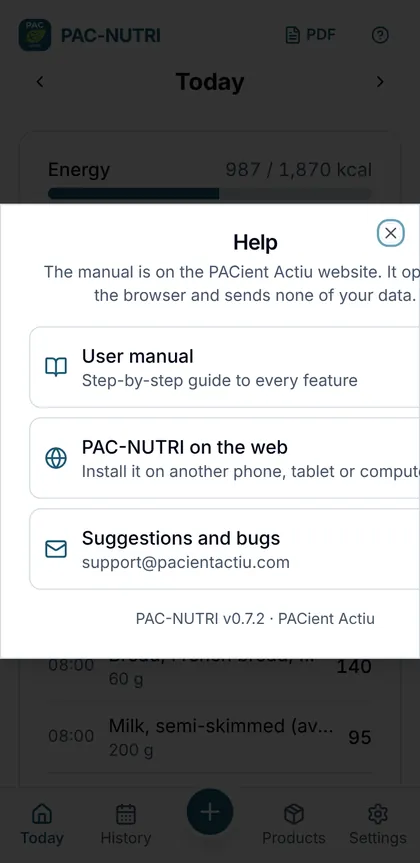
The header always shows the PDF icon (reports) and the ? icon (help and this manual). Change the language in Settings → Language.
In this guide
1The Today screen
The day’s summary
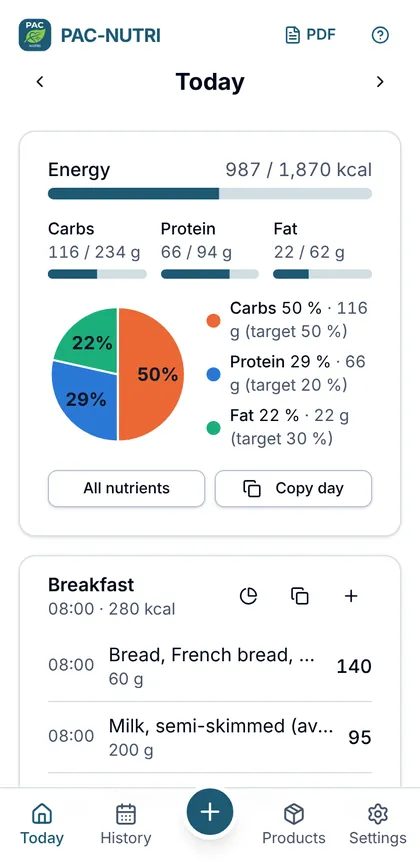
At the top you see energy, carbohydrates, protein and fat against your targets. The pie chart shows how energy is split, with the percentage of each part.
Use the arrows to go to the previous or next day. All nutrients opens the detail with minerals and vitamins.
Meals
Only meals that have foods are shown (breakfast, lunch, snack…). To add another one, use Add to… at the end of the list.
Each meal has four buttons: chart, same time (only if entries have different times), copy and + to add a food at the same time.
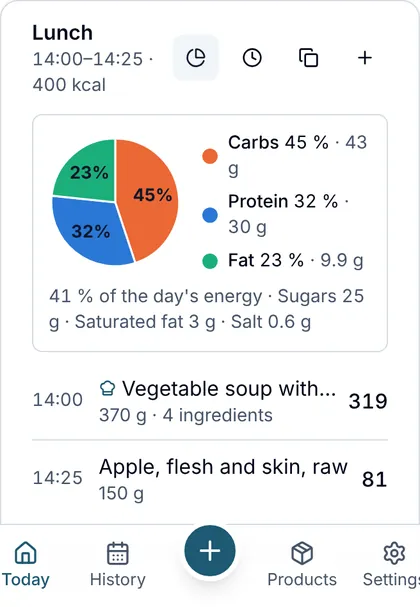
Chart for each meal
The chart button expands that meal’s pie chart and what percentage of the day’s energy it represents, with sugars, saturated fat and salt. This shows which meal is pushing you over.
2Adding what you eat
Three ways
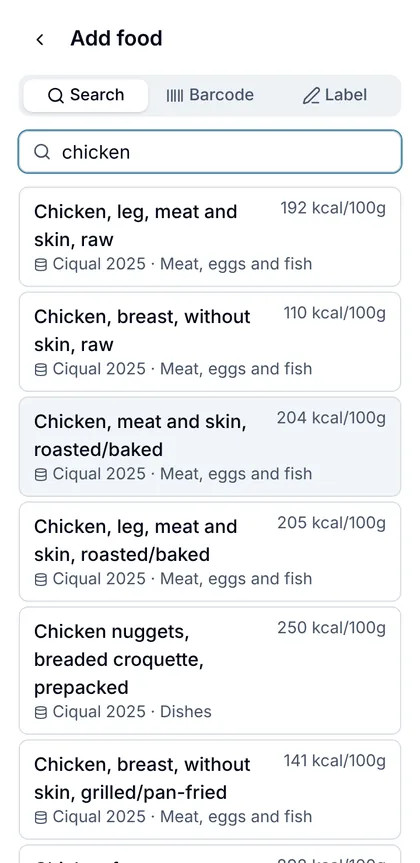
Tap the central + button (or a meal’s +) and choose:
- Search: type the name in any language (chicken, pollo, pollastre, oilaskoa).
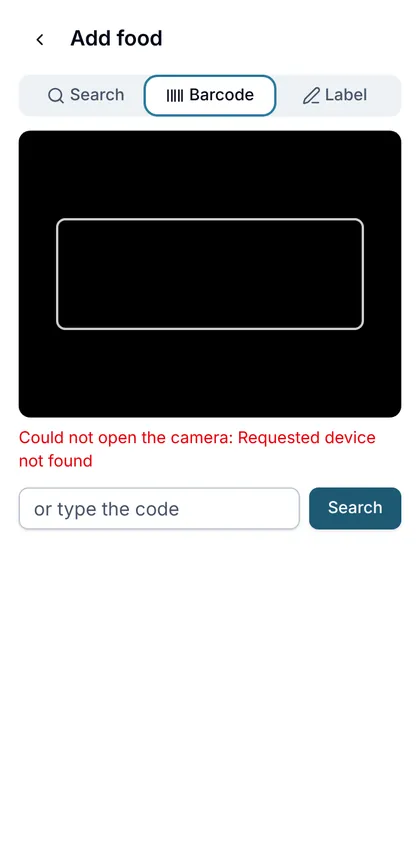
- Barcode: scan the barcode with the camera.
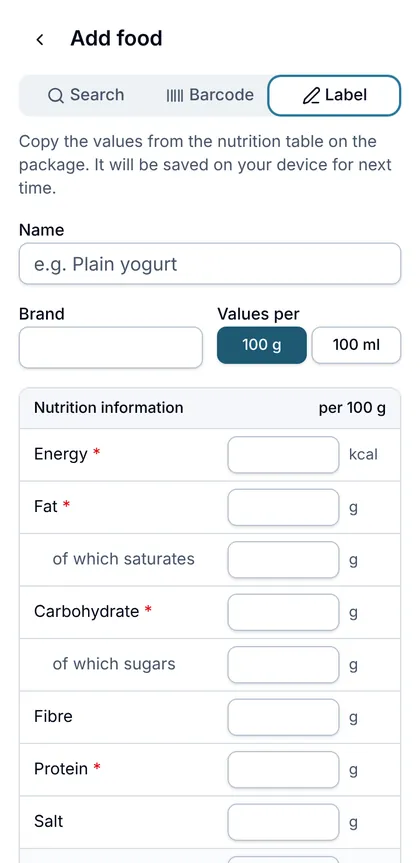
- Label: copy the nutrition table from the pack.
Search
Generic foods come from the official Anses-Ciqual 2025 table. Items you have saved (products and recipes) appear first.
If you can’t find it, tap Create “…” from the label.
Barcode
Point the camera at the code. If the product is in Open Food Facts, its values are loaded; compare them with the label and correct anything needed before saving.
Open Food Facts is a collaborative database: always check the values. Once saved, the product stays on your device.
Label
Copy the values per 100 g or 100 ml. If the label gives kJ or salt, the app converts to kcal and sodium. You can enter the weight of one unit (a biscuit, a slice) to log it by units.
3Amounts: grams or units
Choosing the amount
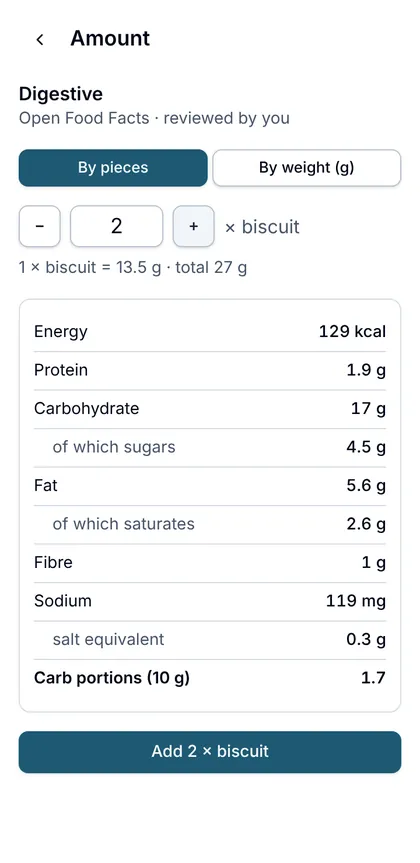
If the product has a unit weight or a pack serving, By pieces opens: use − and + to choose how many you eat and the app calculates the grams.
With By weight you type the grams. The table shows the nutrients for the chosen amount, including carb exchanges (10 g).
Changing it later
In the meal editor, the button next to the amount (g or the unit name) switches between grams and units: 40.5 g ↔ 3 biscuits.
Always save
The Cancel and Save buttons are always visible at the bottom. If you try to leave with unsaved changes, the app asks you.
A meal is not logged until you tap Save.
4Dishes and recipes
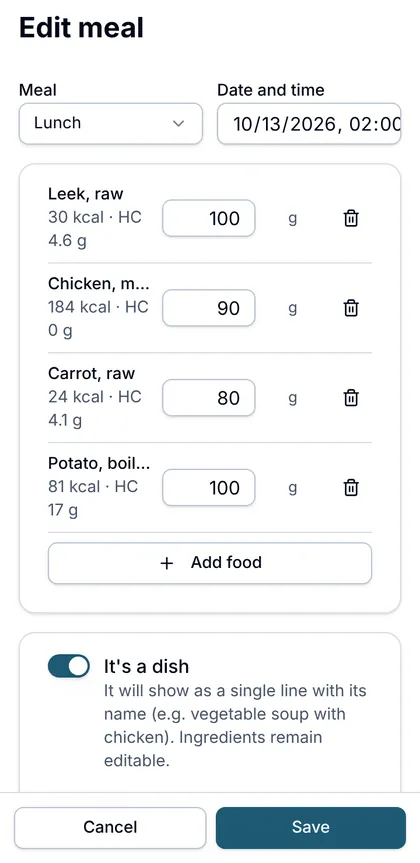
It’s a dish
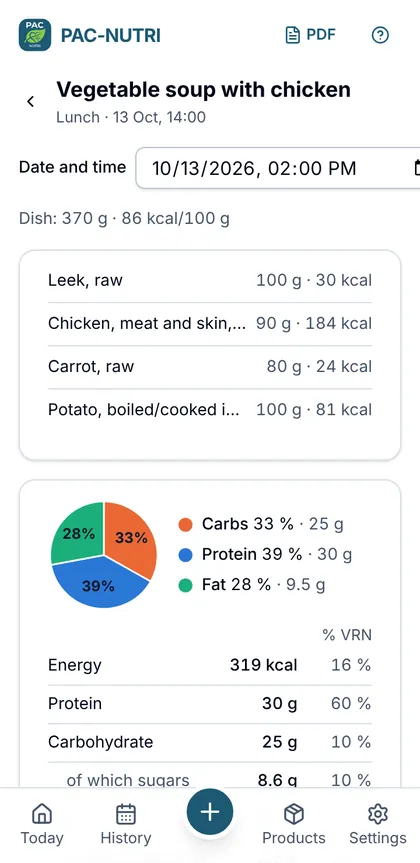
When a meal has several ingredients (a vegetable soup with chicken), turn on It’s a dish and give it a name. It will show as a single line in the day, with the total weight and kcal.
Leave Also save as a recipe ticked to reuse it.
Reusing a recipe
Search for the recipe by name in a new meal. The ingredients are loaded scaled to the amount you eat and you can change any of them, for example the chicken.
If you want the saved recipe to change too, tick Also update the saved recipe.
If you cook the whole pot, include the water too (0 kcal) or enter the final weight in Products → Recipes, so the value per 100 g is that of the cooked dish.
Detail and time
Tap an entry to see all the ingredients and nutrients. From here you can change the date and time directly, edit, copy or delete.
5Copying and times
Copy
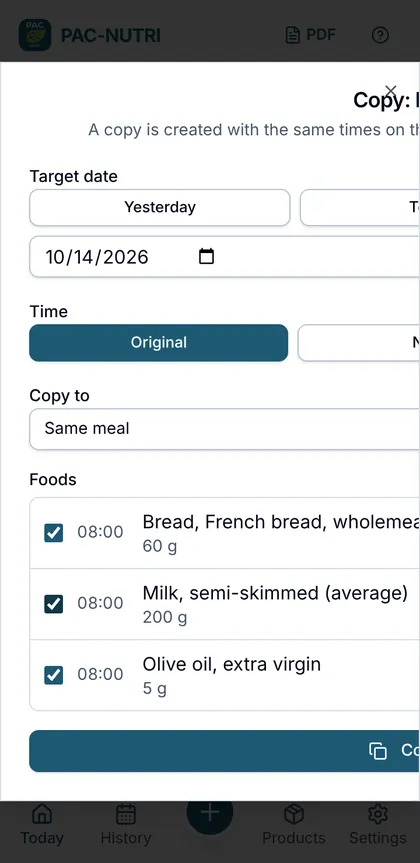
A meal’s copy button (or Copy day) opens a dialog where you choose:
- the date: yesterday, today, tomorrow or any date;
- the time: the original one, now or a specific time;
- where it goes: the same meal or another one;
- which foods to copy.
Nothing is copied until you tap the “Copy” button.
Same time
If a meal has foods at different times, the clock button sets them all to the same time. Foods you add with a meal’s + take that meal’s time.
6History and fasting
History
Shows the average of the last few days and the list of days with entries. Tap a day to go to it.
Intermittent fasting
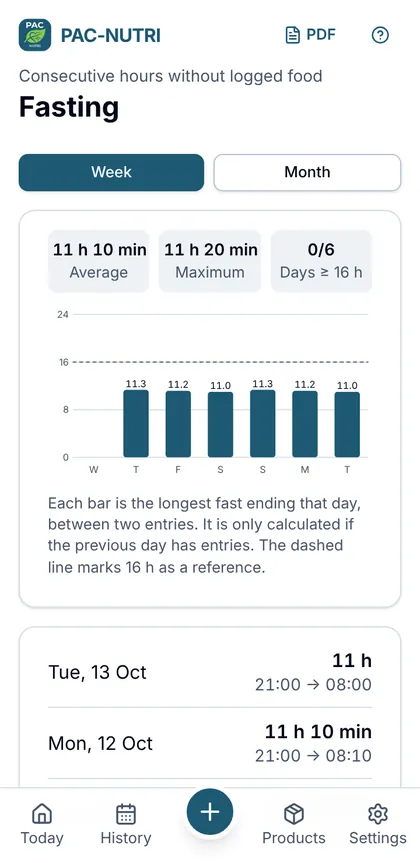
From History, Intermittent fasting shows for each day the longest fast between two entries, by week or month, with the average, the maximum and a 16 h reference.
It is calculated from entry times: it is only reliable if you log everything. If the previous day has no entries, that day is not calculated.
7PDF reports
Choosing the report
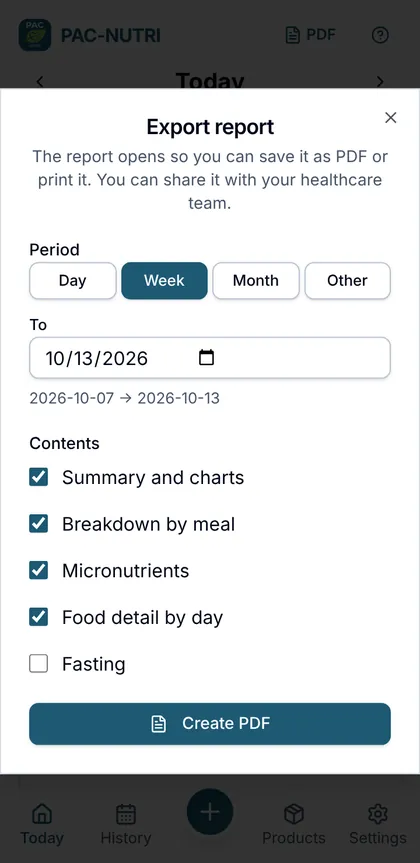
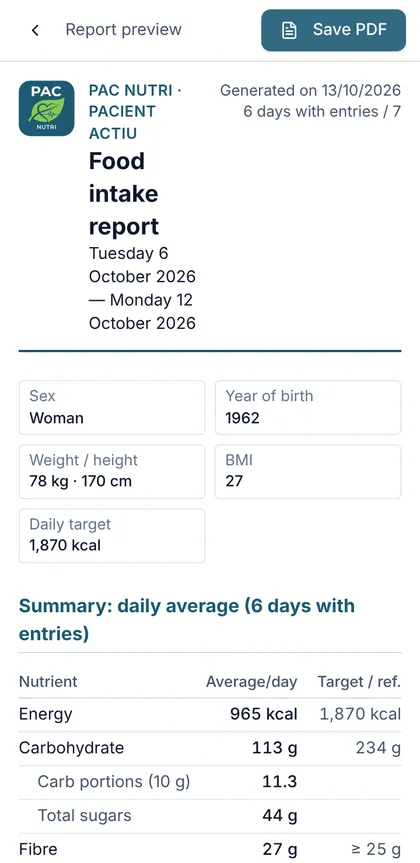
Tap PDF in the header. Choose the period (day, week, month or specific dates) and the sections: summary and charts, breakdown by meal, micronutrients, food detail by day and fasting.
Save or share
Tap Create PDF to see the report. Save PDF opens the system print dialog; choose Save as PDF or share it with any app you like.
The report states the sources, targets and references (WHO and EFSA) and marks with * the values where some food lacks data.
8Your data
Where it is
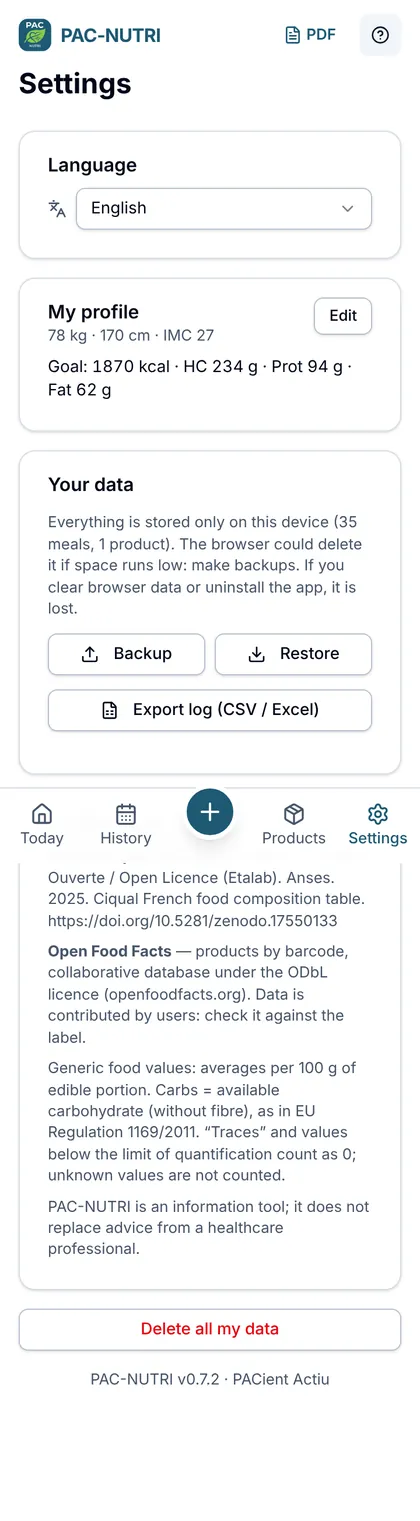
Everything is saved on your device. In Settings → Your data:
- Backup: downloads a backup copy.
- Restore: recovers a backup (on this device or another).
- Export log: CSV file to open in a spreadsheet.
Make backups often and keep them off your phone. If you clear the browser data or uninstall the app, your data is lost.
Help
The ? icon opens this manual, the PAC-NUTRI page (to install it on another device) and the suggestions email.